
How to Post a P2P Advertisement on Bitget? - Website Guide
[Estimated Reading Time: 5 minutes]
This article provides a step-by-step guide for Bitget P2P users to post advertisements in the P2P marketplace. Follow these instructions to create and manage your advertisement effectively.
How to Post a P2P Advertisement on Bitget Website
Step 1: Access the Ad Posting Interface
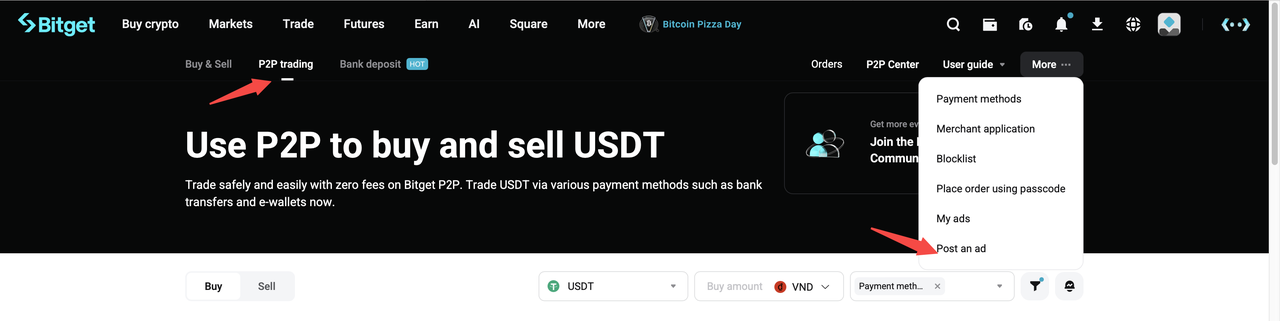
1. Navigate to the P2P Trading section via the main menu or directly at the Bitget P2P interface.
2. Click the Post an Ad button located in the top-right corner of the screen to open the ad creation interface.
Step 2: Choose Advertisement Details
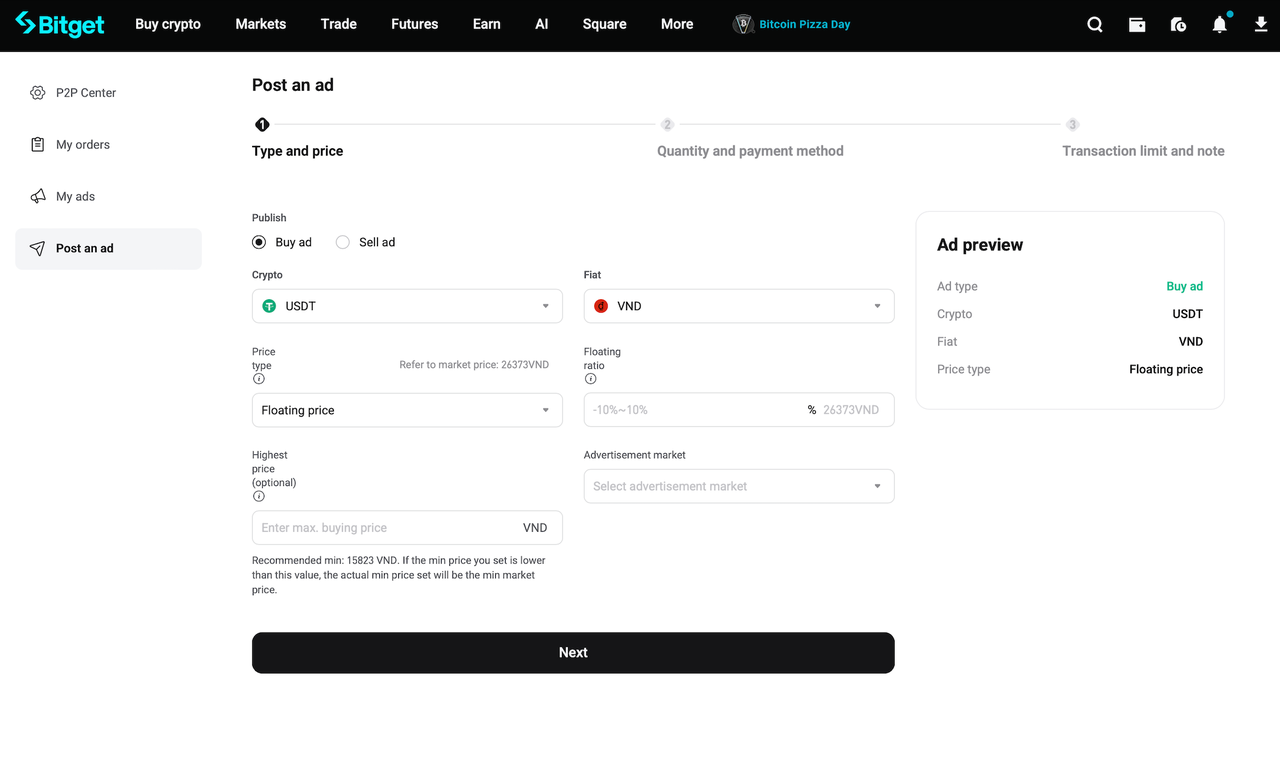
1. Select the Advertisement Type: Choose whether to create a buy ad or a sell ad.
2. Select Cryptocurrency and Fiat Currency: Choose the crypto asset (e.g., USDT, BTC) and the fiat currency for the trade.
3. Set Pricing Type:
• Floating Price (adjusts with market fluctuations)
• Fixed Price (static rate)
4. Advertisement Market:
• If you select Yes, the ad will be published in the P2P market for public visibility.
• If you select No, the ad will not be visible in the marketplace but can be shared privately with specific users.
• Note: Only verified merchants can publish advertisements in the public P2P market.
Step 3: Configure Advertisement Settings
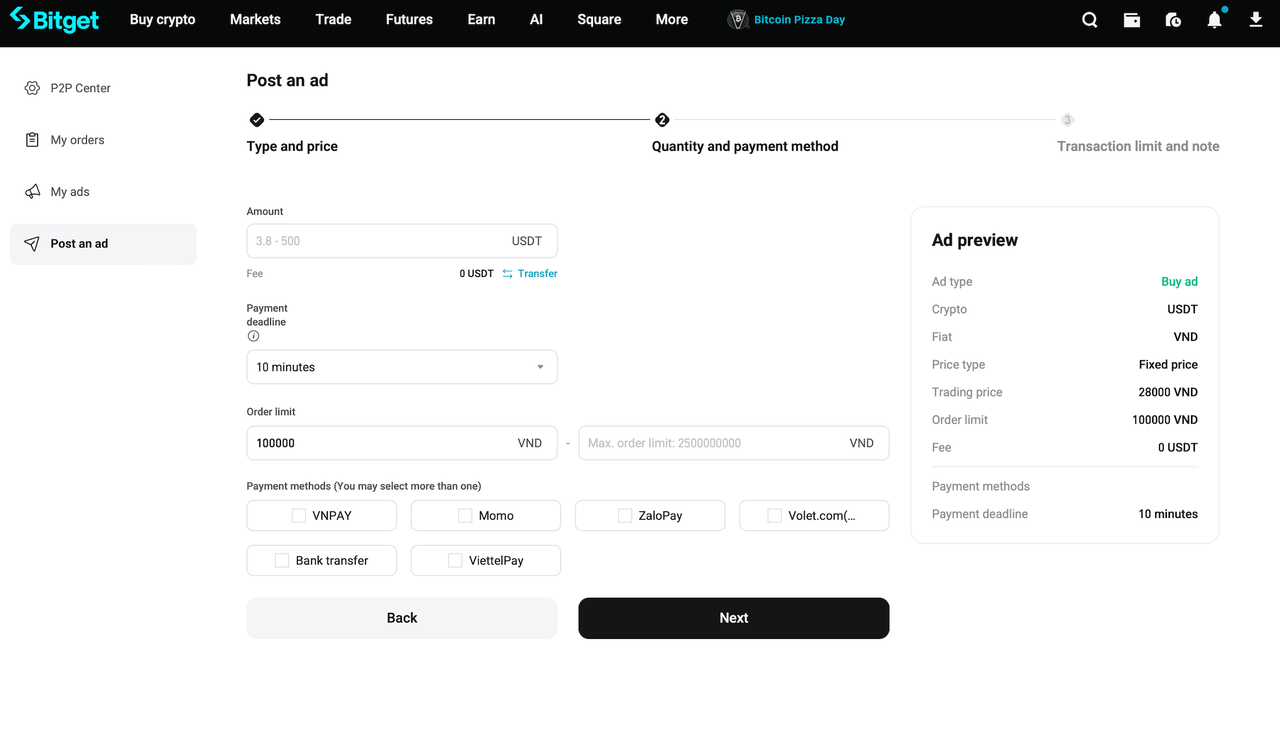
1. Set Trade Details: Define the total trading amount, order limits, and accepted payment methods.
2. Set the Payment Deadline:
• Specify the payment time buyers have to complete the transfer (e.g., 15, 20, 30, or 60 minutes).
• Orders will be canceled automatically if payment is not completed within this timeframe.
Step 4: Add Additional Advertisement Information
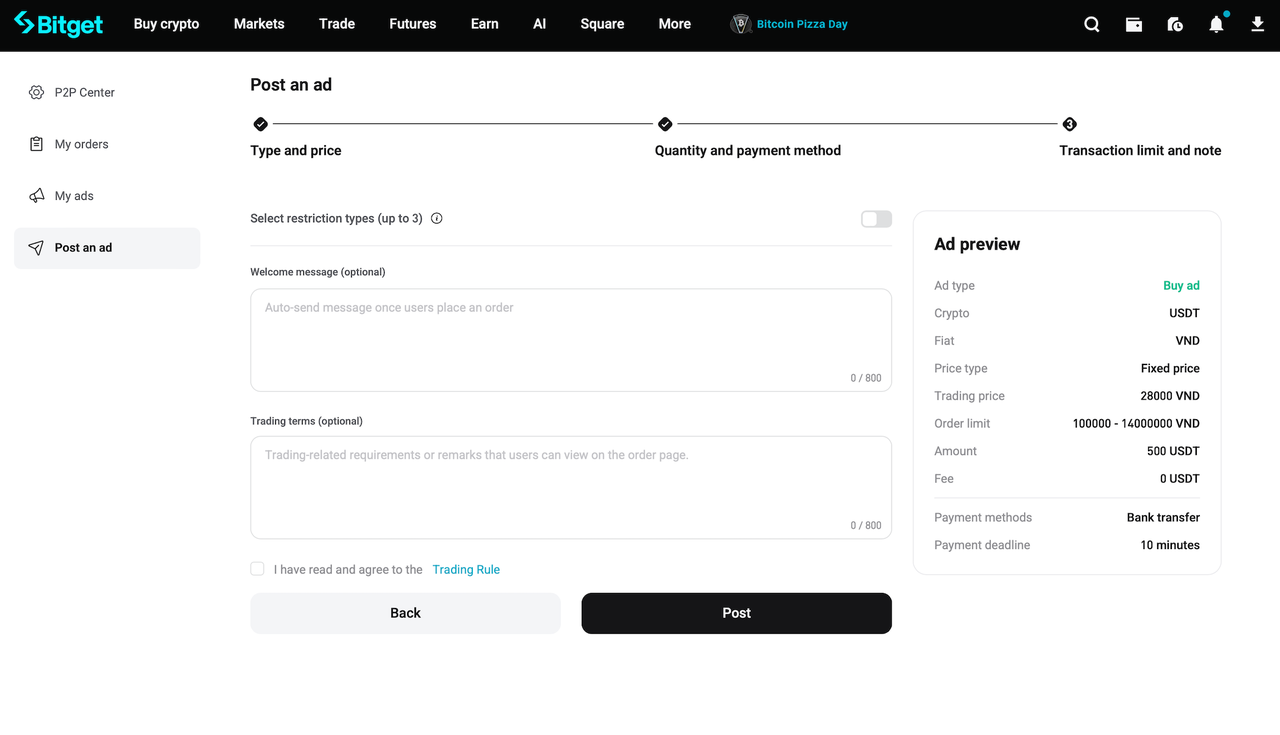
1. Restriction Type (Optional): Turn on the switch to enable restrictions for your ad. You can set conditions for users who can interact with your ad, such as verified users only. Users who do not meet the selected requirements will not be able to place an order.
2. Welcome Message (Optional): Use the "Welcome message" box to create an automatic message that will be sent in the live chat when a user places an order. Please avoid including sensitive content or external platform information, as ads containing restricted remarks may be automatically delisted by the system.
3. Trading Terms (Optional): Use the "Trading terms" box to provide detailed requirements or guidelines related to the trade. These terms will be visible on the order page but will not be auto-sent in the chat.
Step 5: Review and Post Your Advertisement
1. Acknowledge the Trading Rules: Tick the box confirming that you have read and agreed to the Trading Rules.
2. Post Your Ad: Click Post to make your ad live.
Note: P2P advertisements are displayed based on the following factors, listed in order of priority:
a. Pinned status
b. Ad price
c. Merchant level
d. Online status
e. Advertisement edit time
FAQs
1. What types of advertisements can I post?
You can create either a buy ad or a sell ad in the P2P marketplace.
2. What is the difference between Floating Price and Fixed Price?
• Floating Price: Automatically adjusts with market fluctuations based on a premium or discount percentage you set.
• Fixed Price: Remains constant at the rate you specify, regardless of market changes.
3. What is the "Highest Price" setting?
The highest price sets a maximum cap for floating price ads, protecting you from significant losses during volatile market conditions.
• Example: If the highest price is set to 10,000 and the market price exceeds that value, your ad price will remain at 10,000.
• If the highest price is lower than the market’s minimum price range, the buy price will default to the market's minimum.
4. Can I edit or delete my advertisement after posting?
Yes, go to the [My Ads] section to edit, delist, or share your advertisement.
5. Are there any fees for posting a P2P advertisement?
Posting P2P ads on Bitget is free. However, fees may apply for certain transactions depending on your payment method or bank.
Join Bitget, the World's Leading Crypto Exchange and Web3 Company
Share


